
[emacs] how to use tex on emacs tutorial4-figures
참조
page layout basic tex section table about cv
figure
figure는 그림이다. 이것을 어떻게 문서에 나타낼것인가? 인데, 우선 image파일이 같은 경로에 있는 경우를 살펴보자. image파일이 필요하다.
graphix package
image파일을 표시하려면 graphix package가 필요하다. 그런데 이 package가 좀 tricky해서 설치시 에러가 날수도 있다고 한다. 아니나 다를까 나도 다음과 같이 추가하니까 에러가 난다.
\usepackage{graphix}
ERROR: LaTeX Error: File `graphix.sty' not found.

--- TeX said ---

Type X to quit or <RETURN> to proceed,
or enter new name. (Default extension: sty)

Enter file name:
./b.tex:4: Emergency stop.
<read *>

l.4 \author
           {holy}^^M
--- HELP ---
From the .log file...

(cannot \read from terminal in nonstop modes)
아 내가 오타를 냈다. graphicx를 사용해야 했었다.
tip pdf에서 tex로 이동
emacs에서 보고 있는 pdf viewer에서 마우스 오른쪽 버튼을 누르면 메뉴가 뜨는데 여기서 locate tex source를 선택하면, 누른 위치에 해당하는 tex위치를 가리킨다. 여튼 위,아래로 blindtext[5]를 추가로 작성한 후, 그 사이에 image를 넣어보자.
includegraphics명령어로 image 삽입
\documentclass[a4paper]{article}
\usepackage{blindtext}
\usepackage{graphicx}
\author{holy}
\title{holy draft}

\begin{document}
\maketitle
\tableofcontents
\section{First Section} \label{sec:first}
\subsection{First subsection}
\blindtext[10]
\section{Second Section}
\blindtext[10]
\includegraphics{abcd.png}
\blindtext[10]
\subsection{second subsection}
\blindtext[10]
\section{Third Section}
this is third section

this is ref \ref{sec:first}
\end{document}
위와같이 image를 삽입하고 compile하면 image가 보여진다.
\includegraphics{abcd.png}
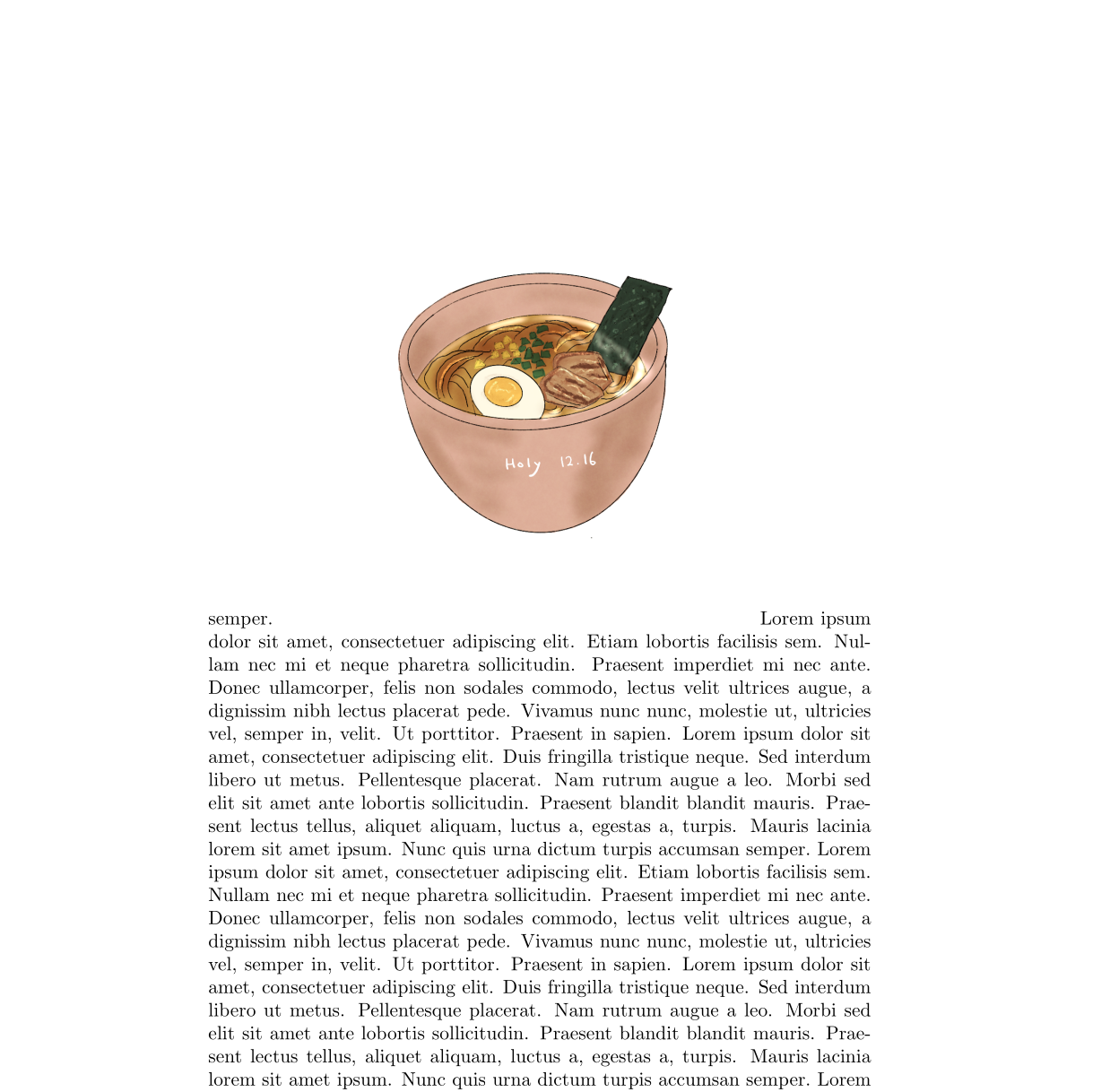
Figure 1: figure1
scale
그런데 이게 해상도가 높은 이미지라면 scale조정이 필요할 수 있다.
\includegraphics[scale=0.4]{abcd.png}
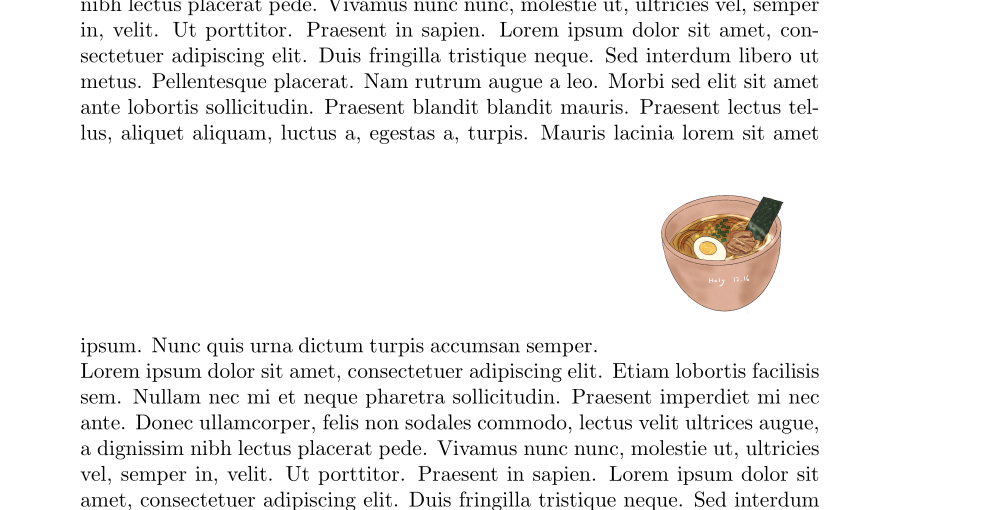
Figure 2: figure2
그런데 보면 알겠지만, 그림이 문자열 사이에 들어가고 중앙에 배치가 되지 않아서 좀 이상해보인다. 따라서 이것을 조정하기 위해서 center block을 배치한다.
\begin{center}
  \includegraphics[scale=0.4]{abcd.png}
\end{center}
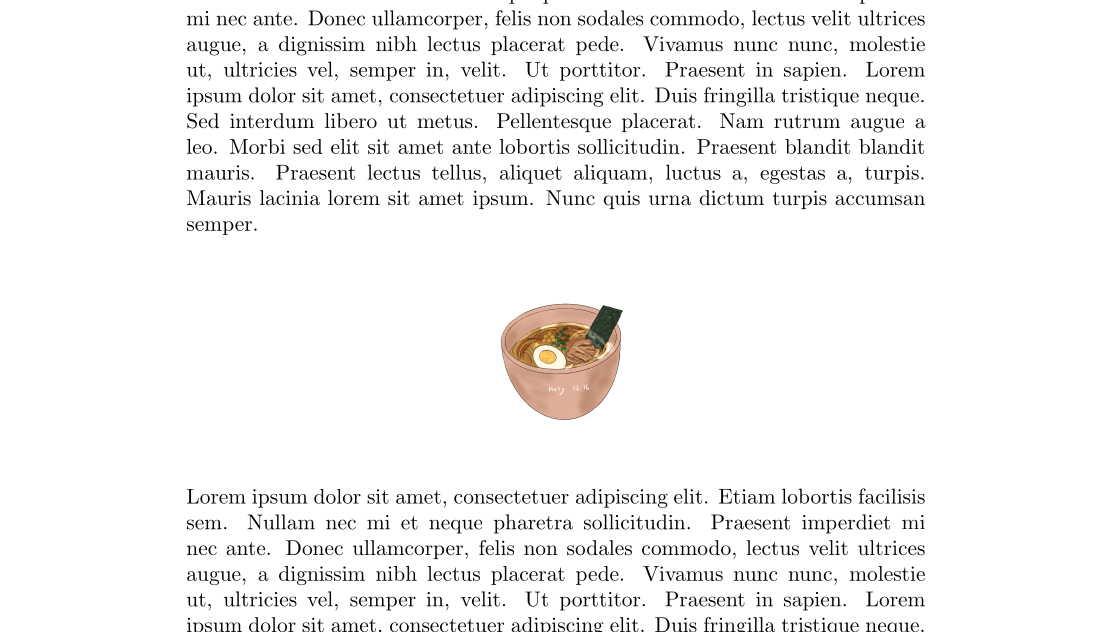
Figure 3: figure3
훨씬 좋아 보인다.
width, height 설정
image의 width, height를 설정할 수 있다.
\begin{center}
  \includegraphics[height=7cm,width=5cm]{abcd.png}
\end{center}
image 크기조정 tip
image를 삽입할때 scale이나, width,height로 manual하게 조작하기 보다, 아주 많이 쓰이는 방법인데, 상대적길이로 세팅하는 방식이 있다. textwidth는 문서의 text문장의 길이를 뜻한다.
\begin{center}
  \includegraphics[width=0.75\textwidth]{abcd.png}
\end{center}
\documentclass[a4paper]{article}
\usepackage{blindtext}
\usepackage{graphicx}
\author{holy}
\title{holy draft}

\begin{document}
\maketitle
\tableofcontents
\section{First Section} \label{sec:first}
\subsection{First subsection}
\blindtext[10]
\section{Second Section}
\blindtext[10]
\begin{center}
  \includegraphics[width=0.75\textwidth]{abcd.png}
\end{center}
\blindtext[10]
\subsection{second subsection}
\blindtext[10]
\section{Third Section}
this is third section

this is ref \ref{sec:first}
\end{document}
위와같이 하면 글의 중간에 적절한 크기로 배치된다.
figure block
image나 table은 floating요소라고 해서, 사용자가 위치를 정하는게 아니라, 적절한 location을 tex engine이 맡아서 정한다. 다만 floating된 요소들을 원하는 위치로 해줬으면 하는 힌트를 사용자가 제공할 수는 있다. 그럴때 figure라는 block을 사용한다.
\begin{figure}
\begin{center}
  \includegraphics[width=0.75\textwidth]{abcd.png}
\end{center}
\end{figure}
이 block을 사용하면, 원하는 위치로 제안이 가능하다. 예를 들면 다음과 같이 처리할 수 있다.
\begin{figure}[htbp]
  \centering
  \includegraphics[width=0.75\textwidth]{image.png}
\end{figure}
h:hint(here), t(top), b(bottom), p(separate page:전용 page) 이다. 그런데 가장 standard한건 hbt옵션을 주는 것이다.
그런데 작성자가 원하는 위치에 이미지를 강제할 순 없는 걸까? 강제할 수 있다.
float package
float package를 사용하면, figure블락의 option에 H를 써서 위치를 강제할 수 있다. 위치는 (Herer)현재 위치로 강제한다. 예를 들면,
\usepackage{float}
\begin{figure}[H]
  \centering
  \includegraphics[width=0.75\textwidth]{image.png}
\end{figure}
caption
figure block에선 caption명령어를 수행할 수 있다. caption을 사용하면 Figure1과 같은 caption이 만들어진다.
\begin{figure}[H]
  \centering
  \includegraphics[width=0.75\textwidth]{image.png}
  \caption{This is a caption}
\end{figure}
label
figure,section,table등에 ref를 사용할수 있는데, 그렇게 할려면 label을 사용한다고 했다. label은 marking과 같다고 했다. 예를 들면, 다음과 같다.
\begin{figure}[H]
  \centering
  \includegraphics[width=0.75\textwidth]{image.png}
  \caption{This is a caption}
  \label{fig:logo}
\end{figure}
이것을 ref로 참조할려면, 다음과 같이 한다.
\begin{figure}[H]
  \centering
  \includegraphics[width=0.75\textwidth]{image.png}
  \caption{This is a caption}
  \label{fig:logo}
\end{figure}

this is ref \ref{fig:logo}
subfigure
figure안에 subfigure를 넣어서 여러 이미지를 넣을 수 있다. subfigure를 사용하는 방법은 figure사용법과 같다. 그리고 figure안에 subfigure를 넣는것이다. 간단하다. figure는 graphicx를 사용해서 figure 블럭에 image와 여러 기능을 갖는 명령어를 실행한다. 일반적으로, figure블럭안에는 image를 넣는 includegraphics라는 명령어가 포함되고, caption, label이란 명령어가 들어간다. 그리고 layout을 위해서 centering과 figure의 option을 사용한다.
\begin{figure}[H]
\begin{center}
  \includegraphics[width=0.75\textwidth]{image.png}
  \caption{This is a caption}
  \label{fig:logo}
\end{center}
\end{figure}
이것을 똑같이 subfigure에도 사용할 수 있다. subfigure를 사용할때는 package를 사용해야 하는데, subfig, subcaption이란 package가 유명한데, subcaption이 간단하다고 한다. 아래와 같이 2개의 package를 설정한다.
\usepackage{graphicx} % 그림을 삽입하기 위한 패키지
\usepackage{subcaption} % subfigure를 사용하기 위한 패키지
그리고 다음과 같은 예를 만들수 있다.
\begin{figure}[htbp]
    \centering
    \begin{subfigure}[b]{0.4\textwidth}
        \centering
        \includegraphics[width=\textwidth]{image.png} % 첫 번째 그림 삽입
        \caption{첫 번째 그림 설명}
        \label{fig:subfig1}
    \end{subfigure}
    \hfill
    \begin{subfigure}[b]{0.4\textwidth}
        \centering
        \includegraphics[width=\textwidth]{image.png} % 두 번째 그림 삽입
        \caption{두 번째 그림 설명}
        \label{fig:subfig2}
    \end{subfigure}
    \caption{전체 그림 설명}
    \label{fig:fullfig}
\end{figure}
여기서 눈여겨 볼것은 layout과 size를 설정하는 부분이다. figure는 subfigure를 담는 그릇이다. 그래서 figure안에 subfigure를 두는데, 이때 centering으로 해서 중앙에 둔다. 그 다음 subfigure의 size를 설정하는데, 상대적 size로 설정한다. 예를 들어서,
\begin{subfigure}[b]{0.4\textwidth}
이것은 전체 texwidth의 40%의 width를 갖는다는 뜻이다. 그리고 image에도 width를 설정하는데,
\includegraphics[width=\textwidth]{image2}