
[emacs] presentation tools
org에서 다른 문서로의 변환
org에서 다른문서로 변환하는데 3가지 방식이 있다.
[첫번째방식] emacs 설정방식
emacs.org에서 설정하는 방식이 있다. 예를 들면, 아래와 같이 설정한다.
(add-to-list 'org-export-latex-classes
  '("letter"
   "\\documentclass[11pt]{letter}\n
    \\usepackage[utf8]{inputenc}\n
    \\usepackage[T1]{fontenc}\n
    \\usepackage{color}"

   ("\\section{%s}" . "\\section*{%s}")
   ("\\subsection{%s}" . "\\subsection*{%s}")
   ("\\subsubsection{%s}" . "\\subsubsection*{%s}")
   ("\\paragraph{%s}" . "\\paragraph*{%s}")
   ("\\subparagraph{%s}" . "\\subparagraph*{%s}")))
[두번째 방식] org문서 head에 작성한다. - recommend
org문서의 상단에 다음과 같은것을 기술한다. 보통 yasnippet에 저장해놓고 불러다 쓴다.
#+TITLE:
#+AUTHOR: Holy frege
#+DESCRIPTION: Org-HTML export made simple.
#+KEYWORDS:  org-mode, export, html, theme, style, css, js, bigblow
#+LANGUAGE:  en
#+OPTIONS:   H:4 toc:t num:2
#+MACRO: color @@html:<font color=></font>@@
#+PROPERTY:  header-args :padline no
#+SETUPFILE: https://fniessen.github.io/org-html-themes/org/theme-readtheorg.setup
#+LATEX_HEADER: \usepackage{kotex}
#+latex_header: \hypersetup{colorlinks=true}
[세번째 방식] export menu에서 설정
export dispatch메뉴에서 template을 저장하고 삽입할 수 있다. 하지만, 어떻게 하는지도 모르고 불편할 듯 해서 나는 사용하지 않는다.
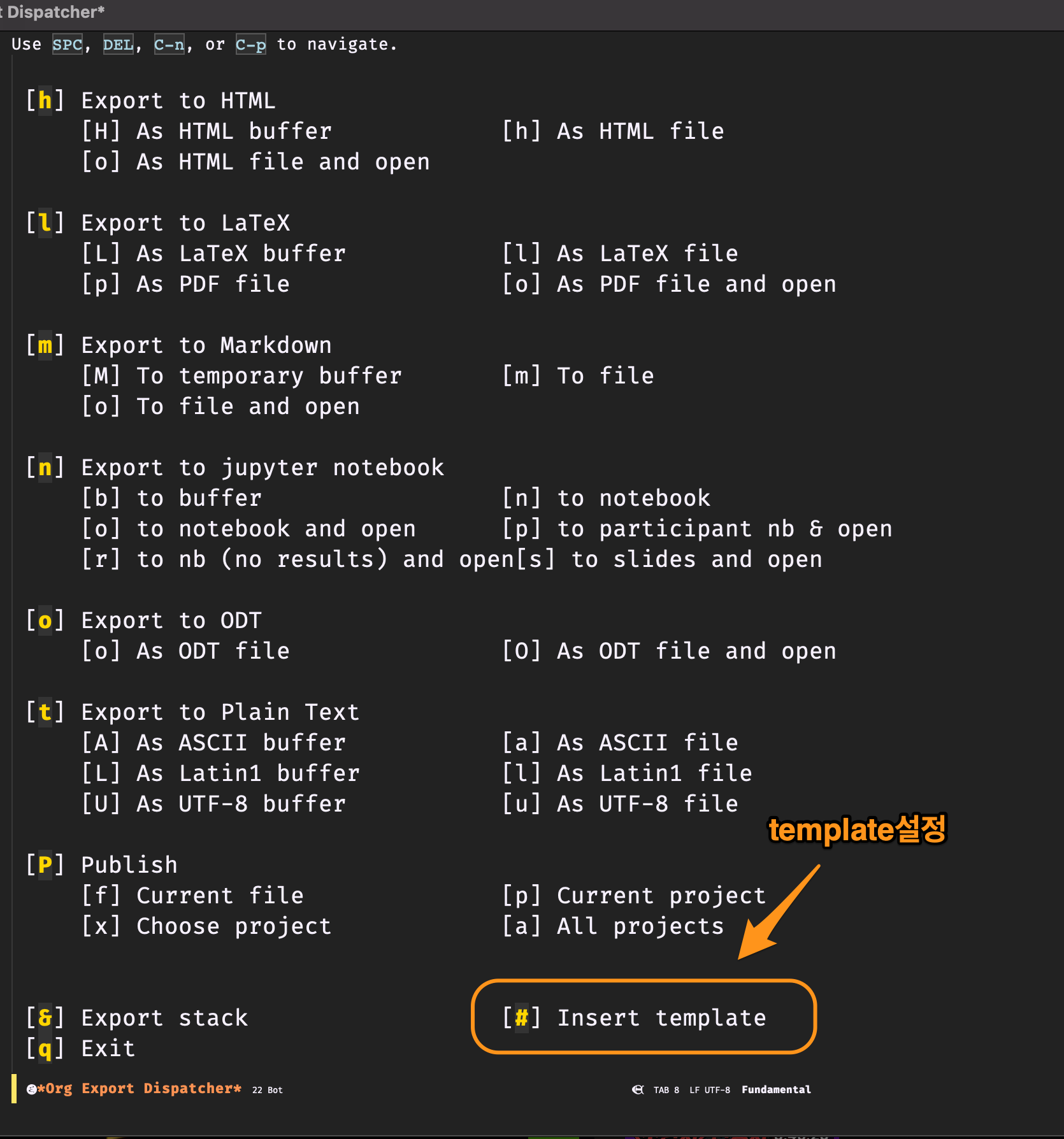
Figure 1: dispatch
요약
세가지 방식중 어떤것을 해도 상관없다. 추천하는건 두번째 방식이다.
Reveal로의 변환
org reveal 설치법
설치
org 문서를 reveal로 볼려면 C-c C-e R R로 export해서 보면 된다. C-c C-e 했을 때 Reveal 메뉴가 안보이면 설치가 안된것이다. ox-reveal.el과 reveal.js가 있어야 한다. 자세한 설치과정은 다음사이트를 확인하자. https://github.com/yjwen/org-reveal https://github.com/hexmode/ox-reveal
reveal.js cdn (두번째 방법)
두 번째 방법이 있다. reveal.js를 시스템에 다운받는경우와 org mode에서 cdn을 사용하는 경우가 있다. 나는 cdn을 사용하기로 한다. org 문서 상단에 다음을 추가한다. snippet을 추가하자.
#+REVEAL_ROOT:  https://cdn.jsdelivr.net/npm/reveal.js
#+REVEAL_REVEAL_JS_VERSION:  4
ox-reveal.el 설치(첫번째 방법)
위의 ox-reveal에서 git을 clone한 후 ox-reveal.el을 .emacs의 lisp폴더에 넣는다. lisp폴더는 내가 만든 폴더인데, emacs를 실행할때 load할수 있게 이미 다음과 같이 setting을 했다.
(add-to-list ’load-path “Users/holy.emacs.d/lisp/”)
lisp폴더에 넣은후에 require로 load하면 된다.
(require ‘ox-reveal)
org reveal 설정
template
일반적인 template은 다음과 같다. snippet에 저장되어 있어서 C-c s로 사용하면 된다.
#+AUTHOR:    hoyoul park
#+EMAIL:     holy_frege@fastmail.com
#+OPTIONS:  toc:nil  d:nil ^:nil num:nil
#+REVEAL_INIT_OPTIONS: transition: 'linear'
#+REVEAL_THEME: moon
#+REVEAL_TITLE_SLIDE: <h2>%t <br> <h4>%a(%e)
#+REVEAL_ROOT:  https://cdn.jsdelivr.net/npm/reveal.js
#+REVEAL_REVEAL_JS_VERSION:  4
#+REVEAL_EXTRA_CSS: ./modifications.css
options
#+OPTIONS: toc:nil d:nil ^:nil num:nil
toc는 index다. table of contents의 약자다. d:nil은 org-roam의 경우 properties가 출력되는데, 즉 drawer를 보여줄지 말지를 결정한다. ^:nil로 한것은 _가 org export시에 subscript로 변환되는데 이것을 문자 그대로 사용하겠다는 뜻이다. num: nil은 각slide tile앞에 숫자가 numbering되는데, 그것을 막아준다.
theme
theme는 여러가지가 있다. 보통은 moon을 추천한다. black,white,league,beige,sky,night,serif,simple,solarized,blood,moon
#+REVEAL_THEME: moon
ATTR
#+ATTR_REVEAL: :frag (appear)
html수정
#+REVEAL_HTML: <div class="column" style="float:left; width: 50%">
title수정
#+REVEAL_TITLE_SLIDE: <h2>%t <br> <h4>%a(%e)
transition
시각적 효과 수정은 여러 option이 있다. 보통은 linear를 추천한다.
#+REVEAL_INIT_OPTIONS: transition: 'cube'
default|cube|page|concave|zoom|linear|fade|none.
org reveal 사용법
chrome browser에서 presentation시 전체화면
f를 누르면 된다.
video 추가
@@html:<video controls width="500" height="300" src="./misc/daeun.m4v"></video>@@
org reveal 해킹
reveal의 구조
<div class="reveal">
  <div class="slides">
    <section>Horizontal Slide</section>
    <section>
      <section>Vertical Slide 1</section>
      <section>Vertical Slide 2</section>
    </section>
  </div>
</div>
slides라는 class아래에 section이 있는데, 우리가 흔히 말하는 슬라이드는 reveal에선 slides아래에 있는 section을 의미한다. section안에 또 다른 section이 있을 수 있는데, vertical 슬라이드가 만들어진다. vertical 슬라이드 안에 level2의 section이 별도의 슬라이드로 들어가는 형태가 된다. 즉 level1의 section은 하나의 슬라이드가 되고, level2의 section은 vertical 슬라이드가 된다. 이것을 기준으로 css를 customize할 수 있다. org mode에서의 mapping관계를 사용해서 설정할 수 있다
font size
위에서 설명한 reveal구조를 해킹해서 css를 적용할 수 있다. font크기를 조정하는 이유는 한글때문에 그렇다. 한글의 경우, 영문하고 다르기 때문이다.
#+REVEAL_EXTRA_CSS: ./modifications.css
font size를 조정하는 css는 다음과 같다.
/* slide 제목 크기 */
.reveal h2 {
  font-size: 1.5em;
  /* color: #4CAF50; */
}
/* vertical slide 제목 크기 */
.reveal h3 {
  font-size: 1.2em;
  /* color: #008CBA; */
}
/* title slide 제목 크기 */
#sec-title-slide h2 {
  font-size: 1.5em;
  color: #FFF484;
}

section p {
  font-size: 0.7em;
  line-height: 2;
}

section li {
  font-size: 0.7em;
  line-height: 1.85;
}
section pre {
  font-size: 0.5em;
  color: #FFF484;
}
org-tree
org-readtheorg
readtheorg 는 아래와 같이 org에 header를 추가하는 방식으로 한다.
#+TITLE:
         #+AUTHOR: Holy frege
         #+DESCRIPTION: Org-HTML export made simple.
         #+KEYWORDS:  org-mode, export, html, theme, style, css, js, bigblow
         #+LANGUAGE:  en
         #+OPTIONS:   H:4 toc:t num:2
         #+MACRO: color @@html:<font color=></font>@@
         #+PROPERTY:  header-args :padline no
         #+SETUPFILE: https://fniessen.github.io/org-html-themes/org/theme-readtheorg.setup
         #+LATEX_HEADER: \usepackage{kotex}
         #+latex_header: \hypersetup{colorlinks=true}
org-beamer
전통적인 tex presentation 방식이다. 이걸 사용하기 위해선 system에 beamer가 설치되어 있어야 한다.