
[org] how to use reveal
reveal의 구조
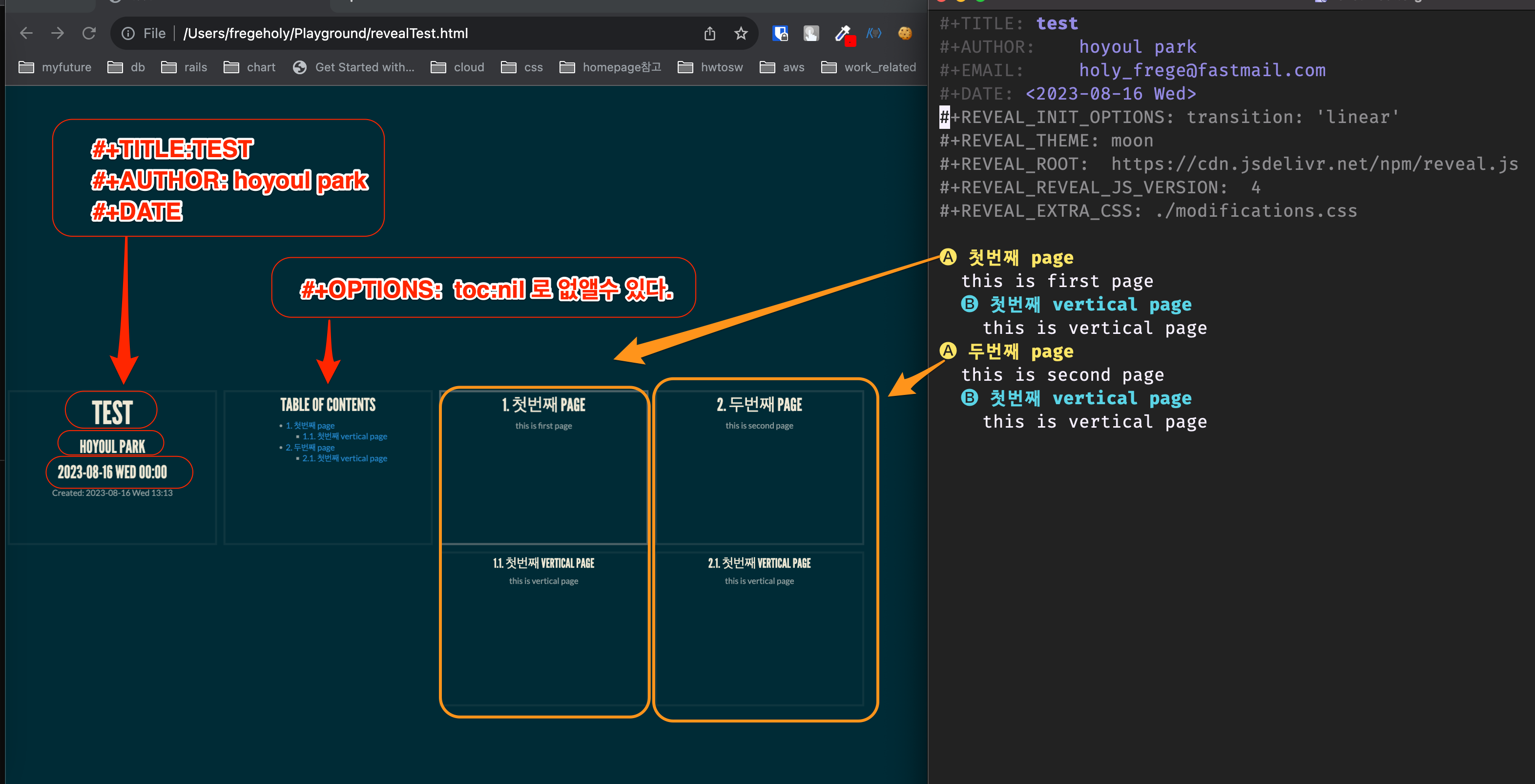
Figure 1: reveal
reveal option에 대해
나의 options는 다음과 같다.
#+OPTIONS: toc:nil d:nil ^:nil num:nil
org파일을 export할때, option이 있는데, 이것은 reveal에도 적용된다. 다음을 참조한다. org options
toc:nil
table of contents, 차례를 보여주지 않는다.
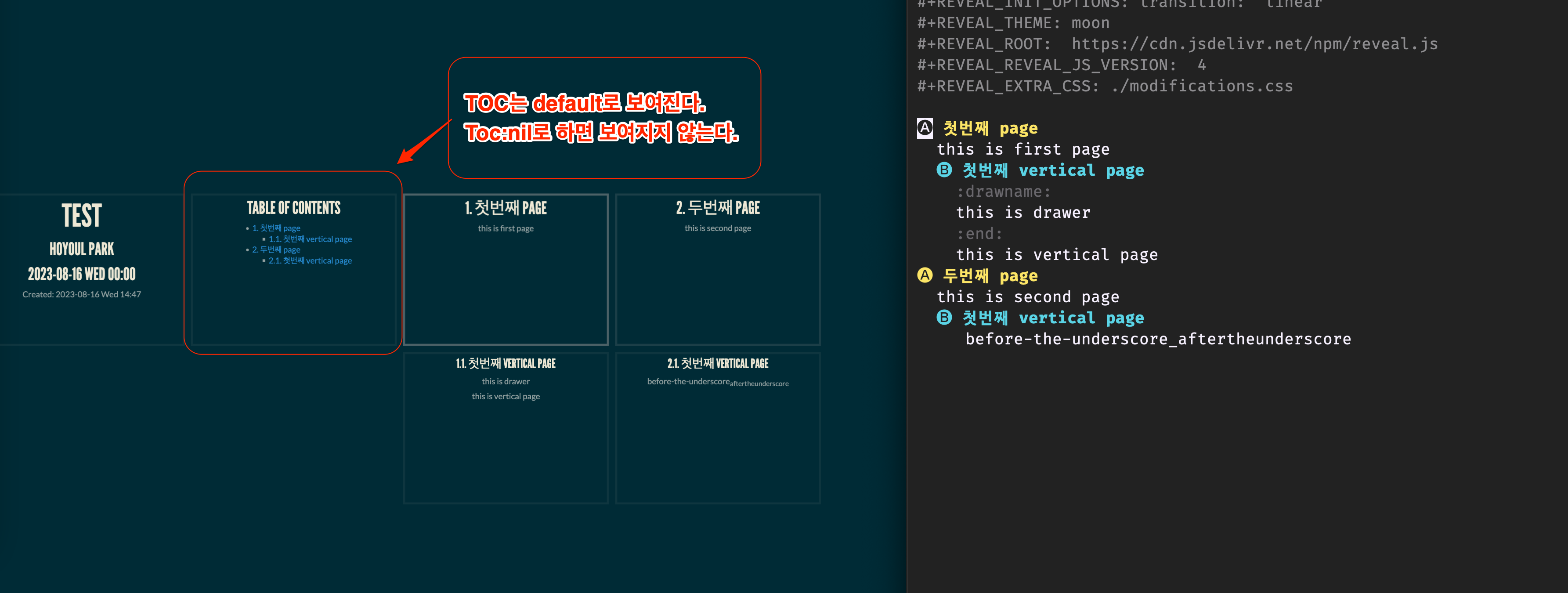
Figure 2: toc
d: nil
drawer에 대한 option이다. drawer를 보일지 아닐지를 결정한다.
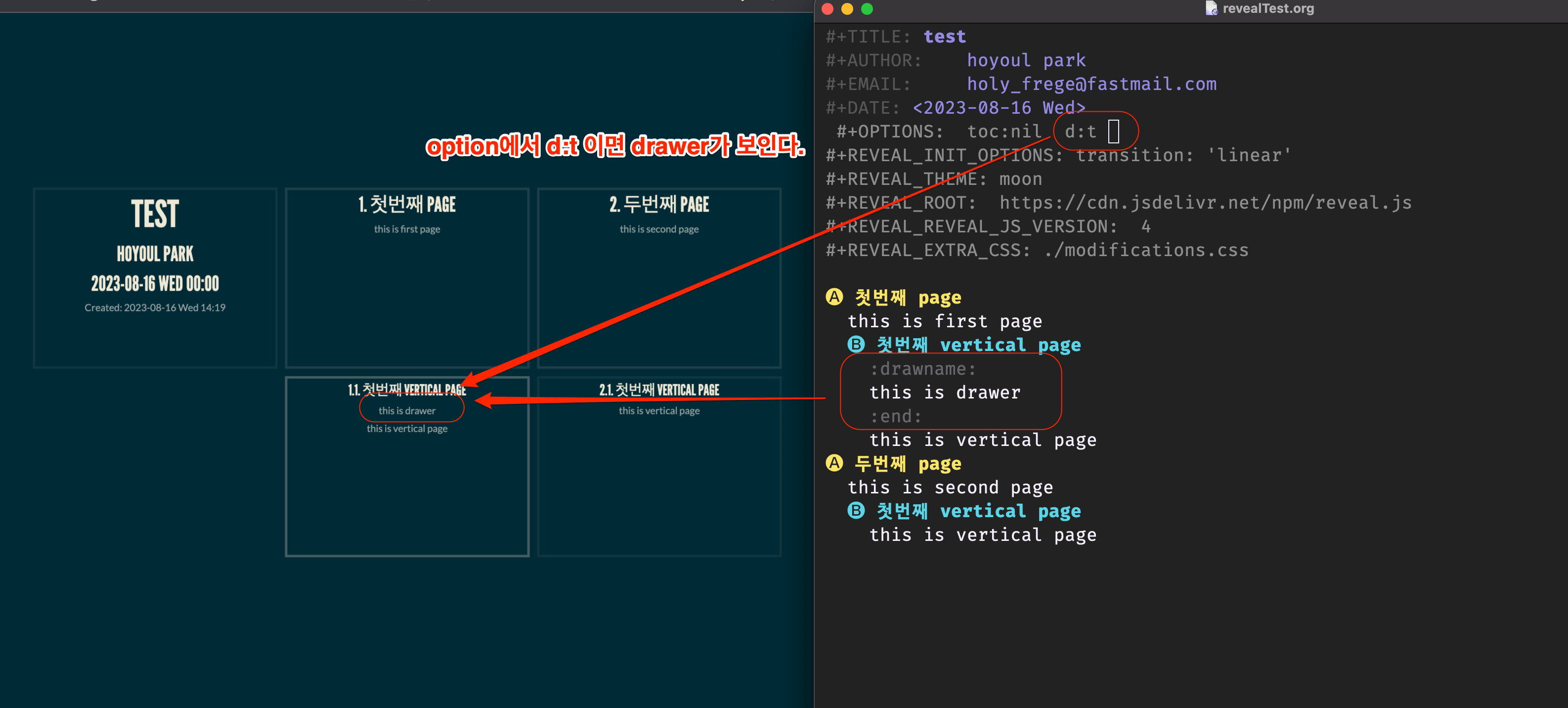
Figure 3: drawer
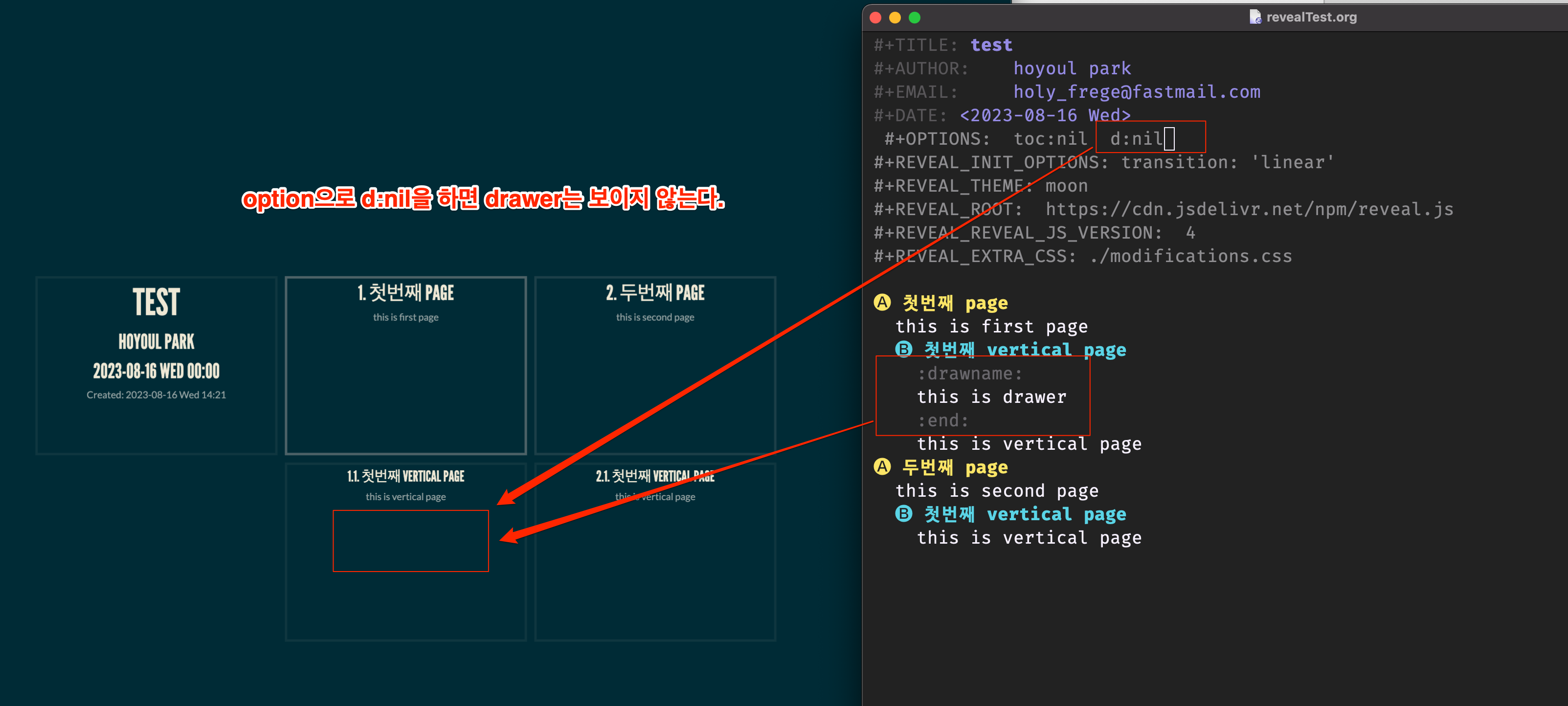
Figure 4: drawer2
^:nil
subscript와 superscript를 어떻게 표시하는지를 결정한다.
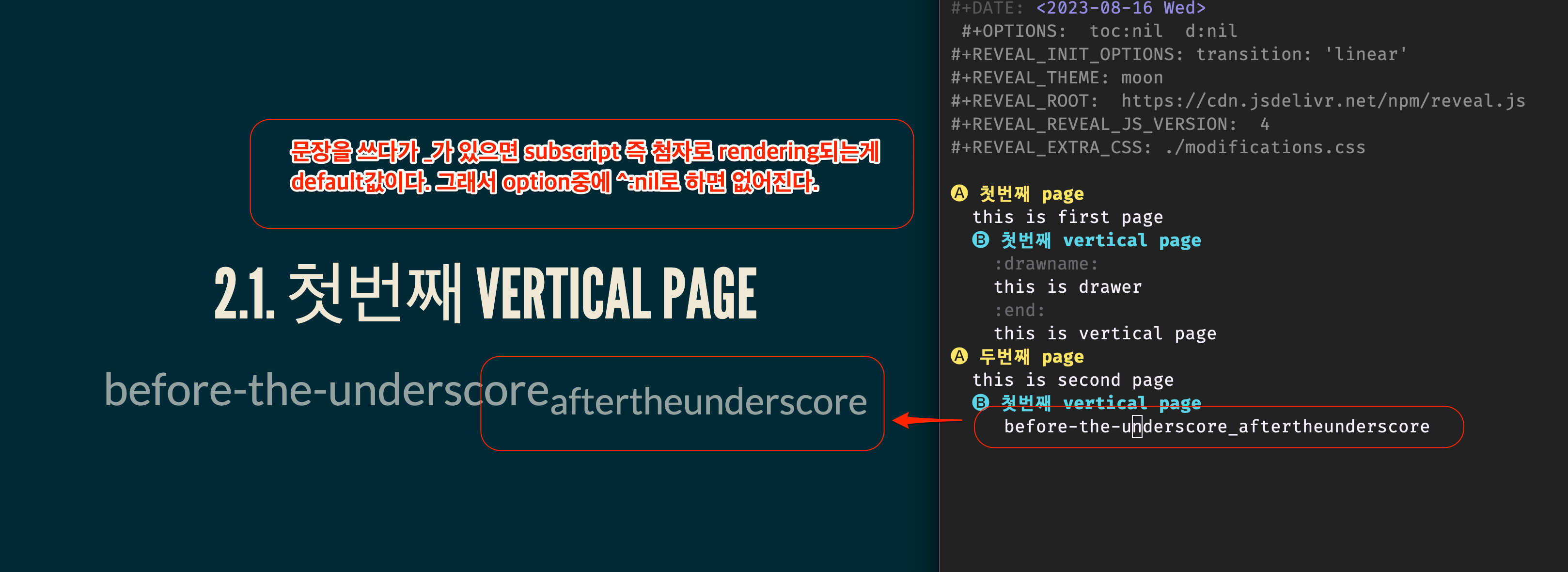
Figure 5: drawer2
num:nil
기본적으로 section들은 numbering이 된다. 이것을 없애려면 nil로 setting한다.
ㄱ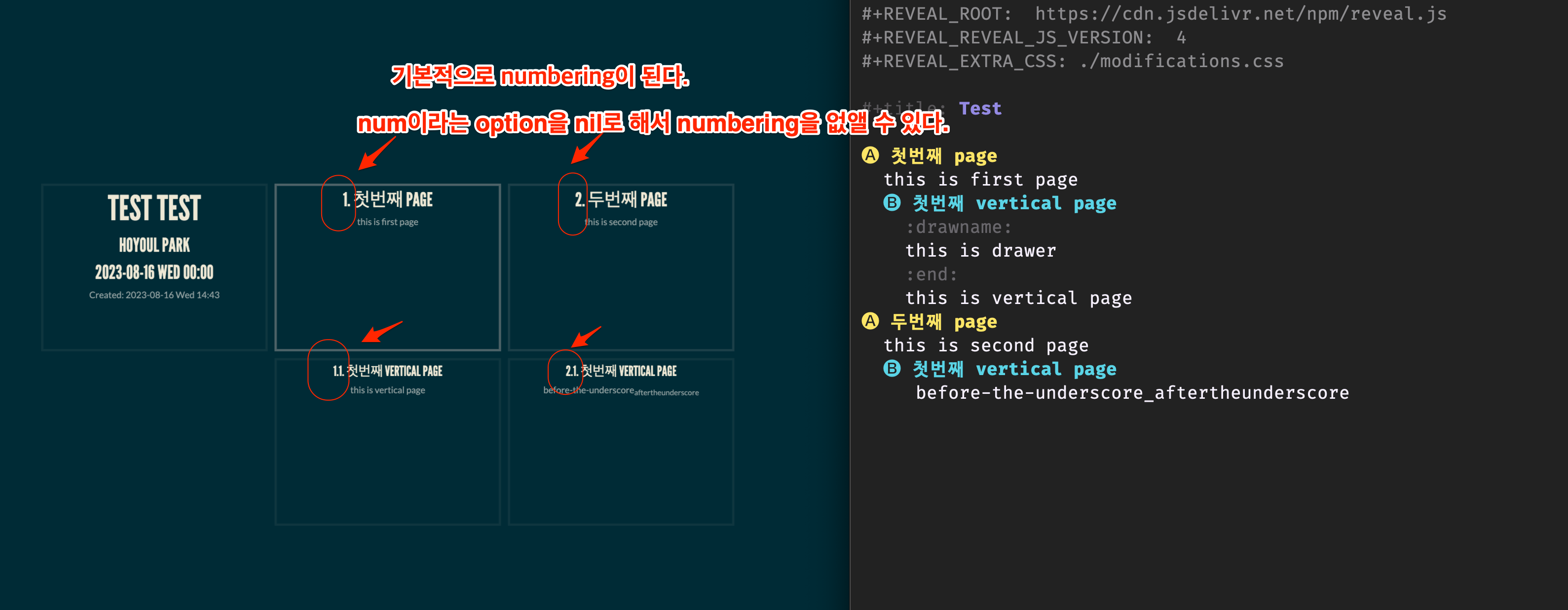
title
title은 반드시 필요하다.
#+TITLE: test
author
author도 반드시 필요하다.
#+AUTHOR: hoyoul park
email은 없는게 낫다.
date
date도 없는게 낫다.
reveal template
위의 option에 따라서 설정하면 다음과 같은 template을 얻는다.
기본 설정
#+TITLE:
#+AUTHOR:    hoyoul park
#+EMAIL:     holy_frege@fastmail.com

#+OPTIONS:  toc:nil  d:nil ^:nil num:nil
#+REVEAL_INIT_OPTIONS: transition: 'linear'
#+REVEAL_THEME: moon
black,white,league,beige,sky,night,serif,simple,solarized,blood,moon
#+REVEAL_ROOT:  https://cdn.jsdelivr.net/npm/reveal.js
#+REVEAL_REVEAL_JS_VERSION:  4
#+REVEAL_TITLE_SLIDE: <h1 class="title">%t</h1><em>%s</em><br><br>%a<br>%d
#+REVEAL_EXTRA_CSS: ./modifications.css
section 꾸미기
위의 template을 사용하면 title 까지 만들어준다. 이제 나머지 section을 어떻게 꾸밀지를 설정할 수 있다. 보통 외부 css를 사용한다.
#+REVEAL_EXTRA_CSS: ./modifications.css
html로 보면, reveal이 최상위 class다. 따라서 .reveal로 모든것을 설정해도 된다. 그다음이 section과 slides가 있다. sec-title-slide라는 건 title section의 id를 나타낸다.
.reveal로 꾸미기
reveal의 구조는 title section, slides, section으로 구성되어 있다. 구조를 보면 다음과 같다.
.reveal로 꾸밀수 있는 것은 title page의 제목을 나타내는 h1속성, section page의 제목을 나타내는 h2속성, vertical page의 제목을 나타내는 h3속성, 모든 section의 paragraph를 나타내는 p 속성, li속성들이 있다. 이것은 모든 section에 적용된다. 만일 title에만 적용되게 하려면,
.reveal pre {
    font-size: 1em !important;
    text-align: left;
}
.section p {
    line-height: 1.2em;
    vertical-align: top;
}
.slides pre {
    font-size: 1em !important;;
}
#sec-title-slide h1{
   font-size: 1em !important;;
}
org에서 css 사용법
- org에서 css의 style을 직접적으로 적용하는 방식은 없다. 편법으로
div태그를 content에 삽입하는 경우다. 정석은 위에서 말한 custom css를
사용해야 한다. 아래와 같이 REVEAL_HTML을 사용하면 div를 삽입할 때
css도 사용할 수 있다.
#+REVEAL_HTML: <div class="temp" style="height:300px; border: 2px solid green; background-color: yellow; font-size: 0.5em; text-align: left; " > content1 content2 content3 #+REVEAL_HTML: </div> - custom css 위에서 얘기했듯이 custom css를 쓰는 방식은 #+REVEAL_EXTRA_CSS: ./modifications.css을 추가하는 것이다.
slide의 vertical alignment를 변경[test]
- custom css를 사용해야 한다.
slide의 heading font size, color 변경
- custom css를 사용해야 한다.
- slide는 3종류가 있다. (title slide, horizontal slide, vertical slide)
- org mode에서 level1 header는 horizontal slide고 level2는 vertical slide다. 각각 설정을 한다.
  /* slide 제목 크기 */
.reveal h2 {
  font-size: 1.5em;
  /* color: #4CAF50; */
}
/* vertical slide 제목 크기 */
.reveal h3 {
  font-size: 1.2em;
  /* color: #008CBA; */
}
/* title slide 제목 크기 */
#sec-title-slide h2 {
  font-size: 2.5em;
  color: #FFF484;
}
slide의 content font size,color변경
- custom css를 사용한다.
section p {
  font-size: 0.5em;
  color: #FFF484;
}
slide에 reveal fragment 사용
#+ATTR_REVEAL: :frag (grow)
   * I will grow. [grow]
   * I will shrink. [shirink]
   * I rolled in. - appear [roll-in]
   * I will fade out. - disappear [ fade-out]
   * I don't fragment.
- fragment는 list에 적용되는 effect다. list 각각의 항목을 space로 눌러서 시간차를 두고 보여 주거나, 크기조절하는 effect를 제공한다. grow는 list항목이 글자가 커지고, shrink는 작아지며, roll-in은 시간차를 두고 보여지고, fade-out은 시간차를 두고 사라진다.
사용법
C-c s reveal_fragment를 누르면, 예제가 보여진다.
slide에서 reveal split 사용
#+REVEAL_HTML: <div class="column" style="float:left; width: 50%">
Column 1
#+REVEAL_HTML: </div>

#+REVEAL_HTML: <div class="column" style="float:right; width: 50%">
Column 2
#+REVEAL_HTML: </div>
- 하나의 화면을 vertical로 쪽개서 사용한다.
slide에 블럭 사용
- slide블럭 사용은 org mode에서 직접 입력한다.
  #+REVEAL_HTML: <div class="temp" style="height:300px; border: 2px solid green; background-color: yellow; font-size: 0.5em;  text-align: left; " >
content1
content2
content3
#+REVEAL_HTML: </div>
slide에 수학 기호 사용-
- latex 수학 기호를 사용한다. 예를 들면, f(x)=\frac{P(x)}{Q(x)}에 양끝에 $를 추가해서 사용하면 표시된다.
\(f(x)=\frac{P(x)}{Q(x)}\) $대신 \(…\)을 사용해도 된다. latex기호를 찾고 org에서 사용할 때, 양끝에 $를 추가하고 reveal로 export하면 된다.
1) $...$
- $\frac{a}{b}$
- $\binom{n}{k}$
2) \(...\)
- \(\frac{a}{b}\)
- \(\binom{n}{k}\)
slide line 간격
css에서 처리한다. line-height:2를 추가한다.
section li {
  font-size: 0.7em;
  color: #FFF484;
  line-height: 2;
}